Connecting Remote Servers to Coolify (Step-by-Step)
By default, Coolify deploys applications onto the server where Coolify itself is installed. To scale horizontally, you can connect an unlimited number of remote cloud servers (AWS, Hetzner, DigitalOcean,…
Lesson 25 of 26 · Module: Coolify
18 min read · Source notes — 2026 Guide • Connect additional servers
By default, Coolify deploys applications onto the server where Coolify itself is installed. To scale horizontally, you can connect an unlimited number of remote cloud servers (AWS, Hetzner, DigitalOcean, Linode, or home labs) and manage them all from a single dashboard.
Step 1: Add a New SSH Key in Coolify
Navigate to Keys & Tokens > Private Keys in your Coolify dashboard. Click + Add Private Key. Coolify will generate a dedicated asymmetric private/public keypair.
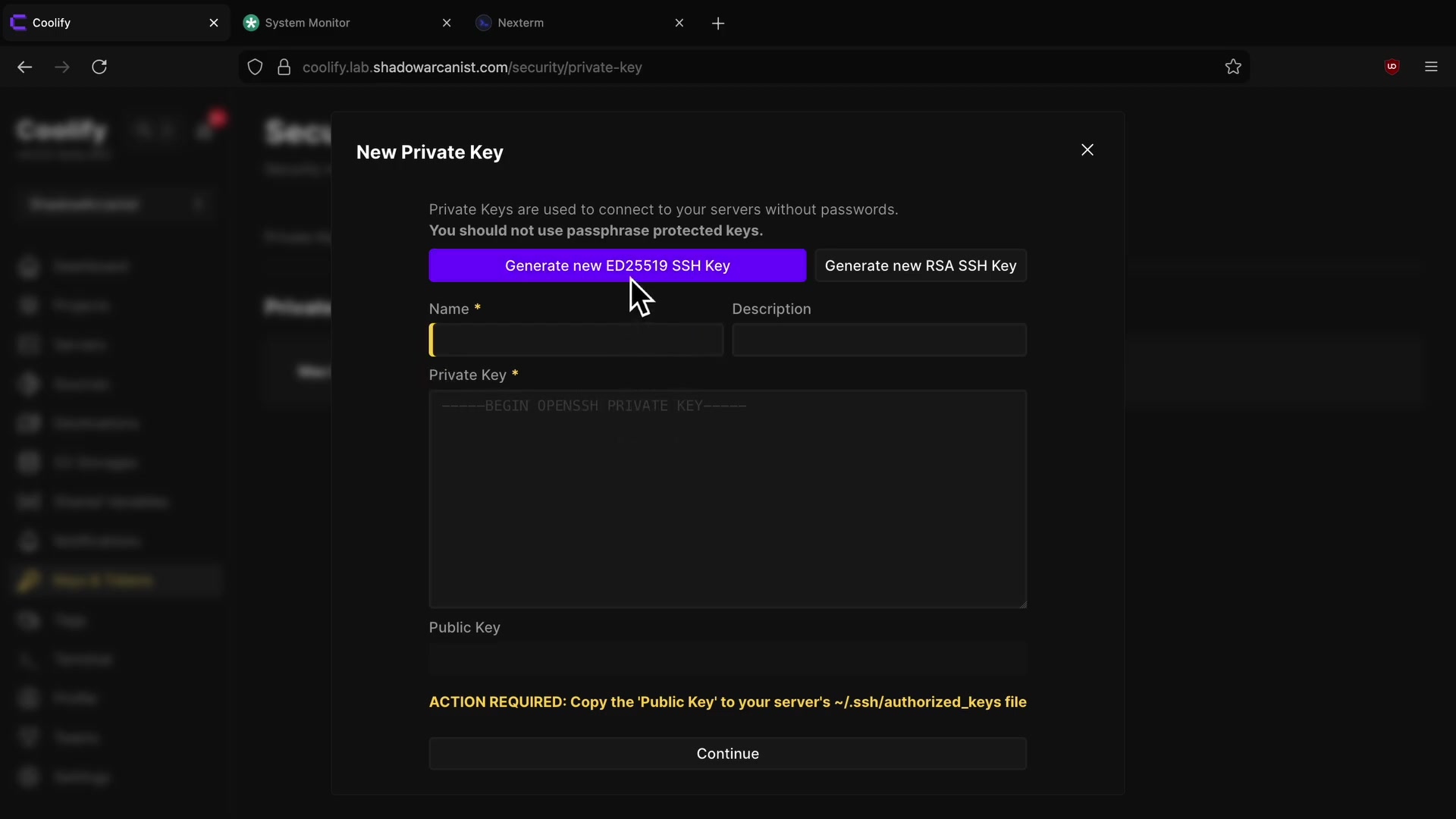
Generating and copying the public SSH key generated by the Coolify control plane.
Step 2: Add the Public SSH Key to the Remote Server
Log in to your newly provisioned remote server (as root) and append Coolify's public key to ~/.ssh/authorized_keys:
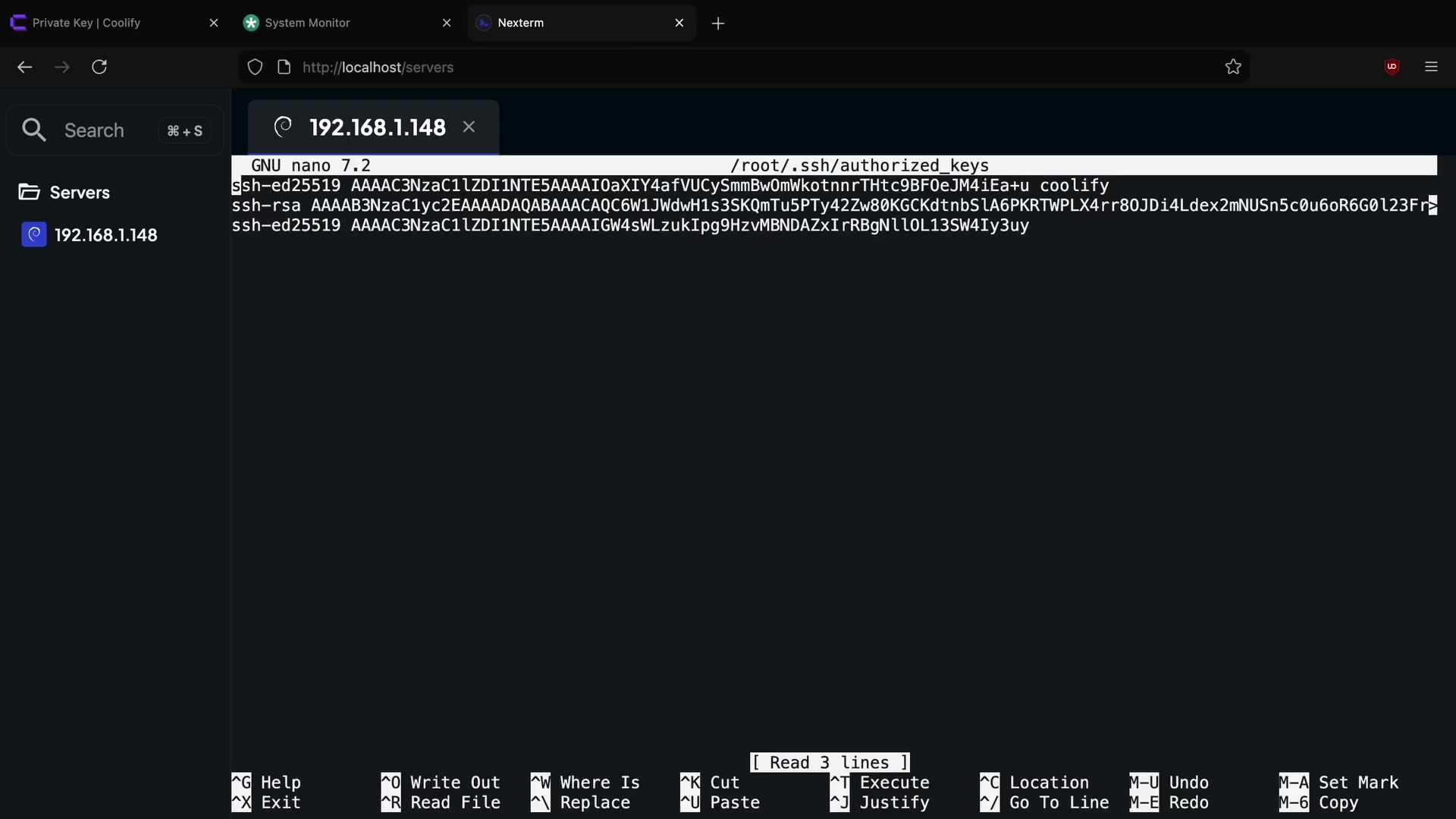
Pasting the public key into the remote host's ~/.ssh/authorized_keys file and setting permissions.
Server Command Setup
# Create .ssh directory if it doesn't exist
mkdir -p ~/.ssh && chmod 700 ~/.ssh

# Paste the public key copied from Coolify into authorized_keys
echo "ssh-ed25519 AAAAC3NzaC1lZDI1NTE5AAAAI... coolify-key" >> ~/.ssh/authorized_keys

# Set strict permissions (SSH will reject open permissions!)
chmod 600 ~/.ssh/authorized_keys
Step 3: Register the Server in Coolify Dashboard
In Coolify, navigate to Servers > + Add Server:
- Name: E.g.,
production-worker-01orhetzner-apps-node - IP Address: The public IPv4 address of the target server
- Port:
22(or your custom hardened SSH port) - User:
root(Coolify requires root access to install Docker and configure firewall rules) - Private Key: Select the key generated in Step 1
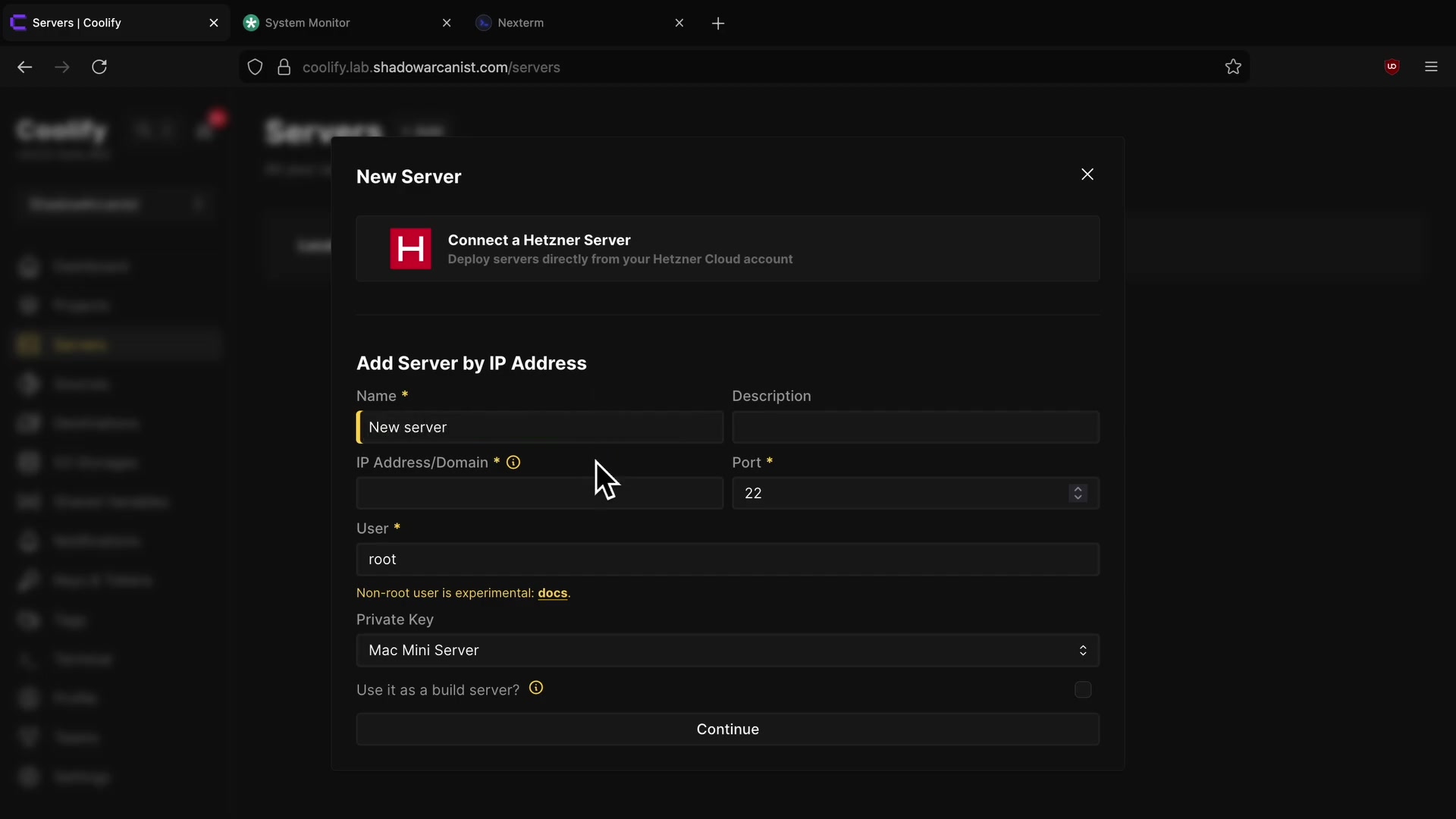
Entering the IP address, SSH port, username, and selecting the private key.
Step 4: Validate the Server Node
Click Validate Server. Coolify will establish an SSH connection, run pre-flight checks, verify system dependencies, and automatically install Docker Engine and the Traefik reverse proxy if they are not already installed!
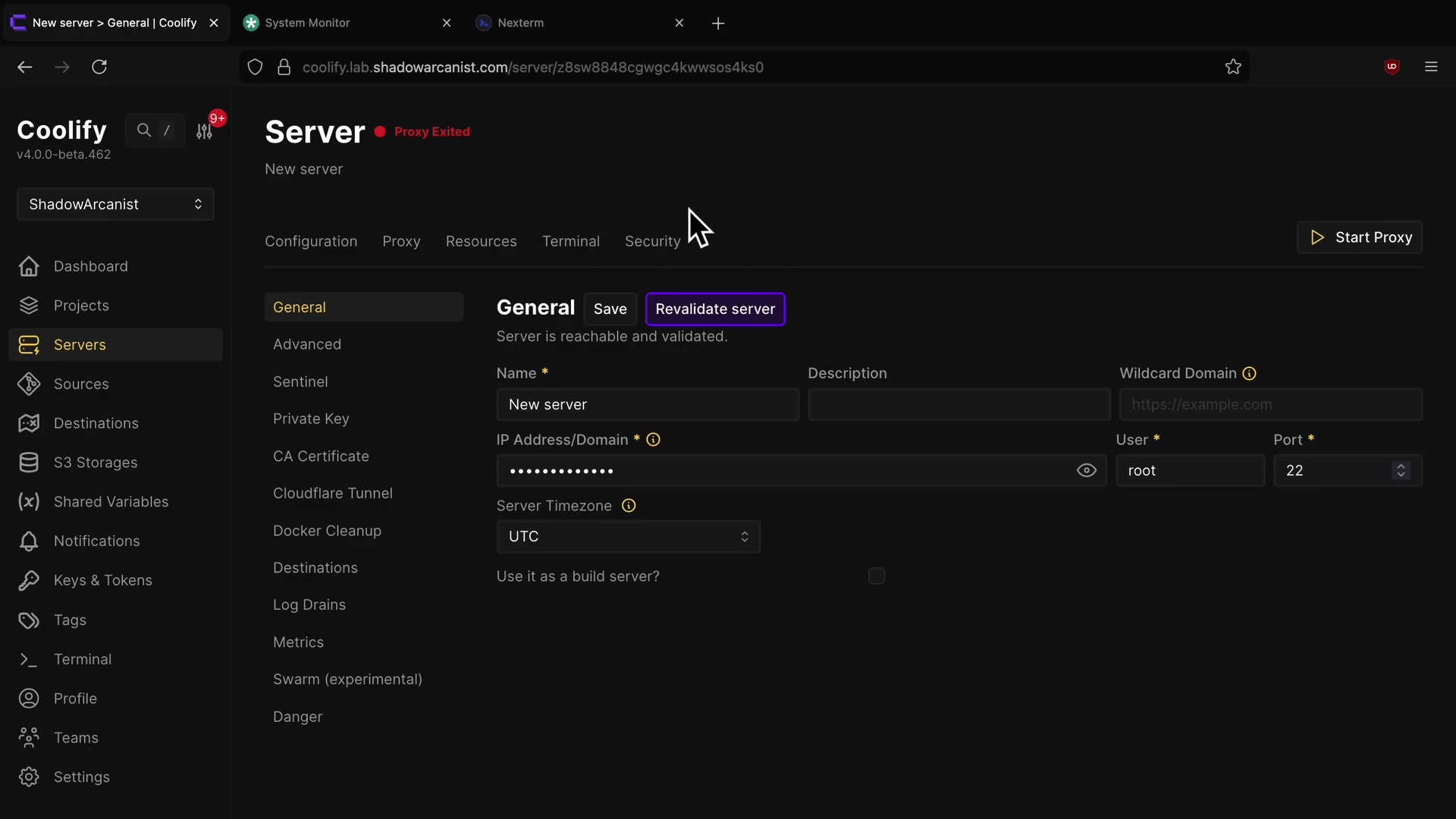
Coolify streaming terminal installation logs during automated server bootstrap and validation.
Step 5: Deploy Applications to Specific Server Nodes
When you create a new application, database, or service, Coolify presents a server dropdown. You can select your newly connected node, distributing workloads across different servers, regions, or cloud providers!
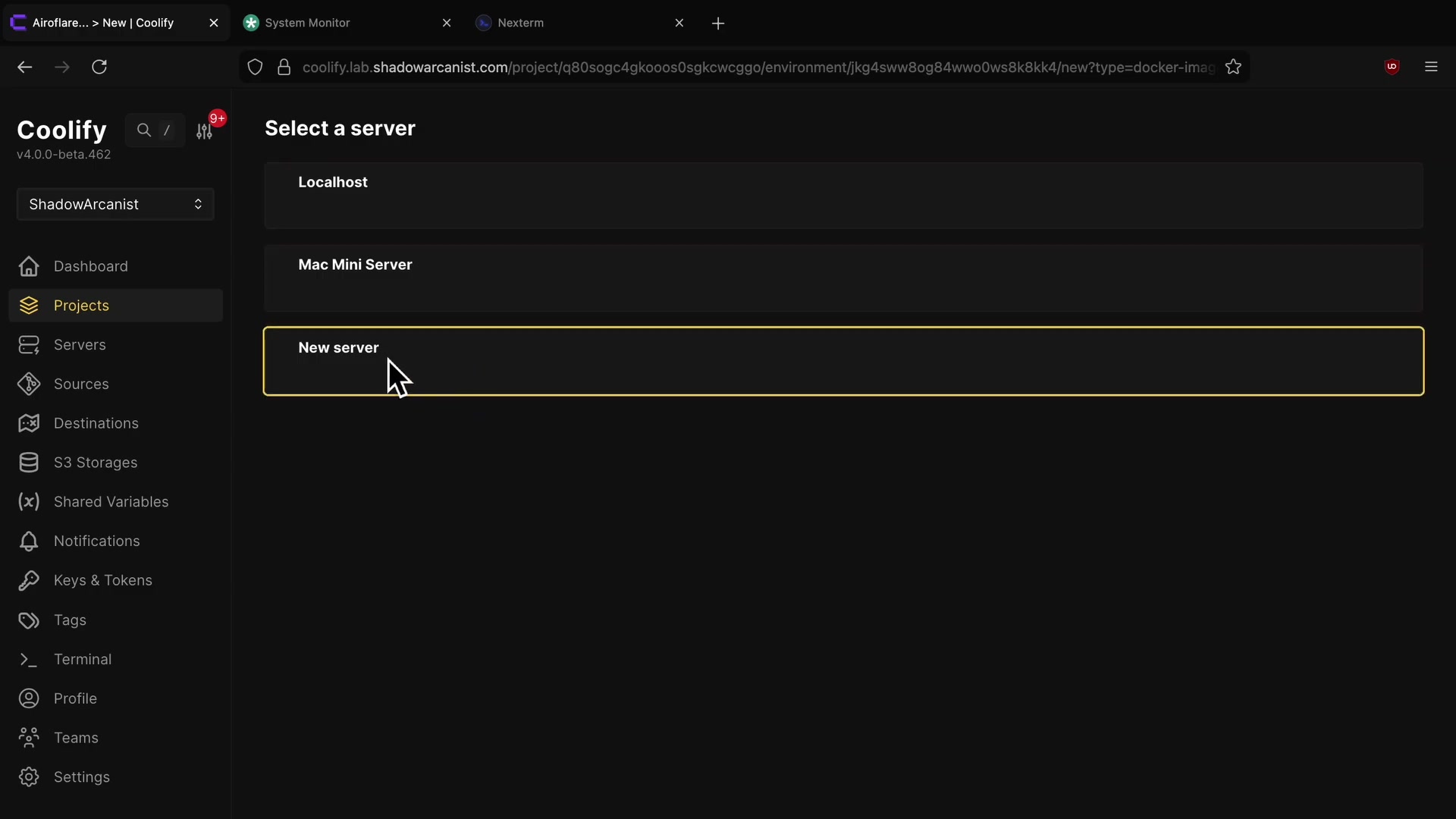
Choosing between local Coolify server vs remote worker server when creating a new application.
Keep going: ← Lesson 24 · Lesson 26 → · Module overview · Track it in the Self Guide
Finished this one?
Part of Self Guide · Stage 8: Self-hosting with Coolify. Progress is saved in this browser.