All 70 Essential Linux Commands for DevOps
Here is the complete, categorized breakdown of the 70 commands every engineer needs to know when managing Linux virtual machines, containers, and cloud clusters.
Lesson 2 of 26 · Module: Linux
25 min read · Source notes — 70 Linux Commands you NEED to know
Here is the complete, categorized breakdown of the 70 commands every engineer needs to know when managing Linux virtual machines, containers, and cloud clusters.
Category 1
Category 1: Navigation & File Operations (Commands 1–16)
#1
ls
List directory contents
Lists files and directories. The most common flags in DevOps are -l (long listing format with permissions, owner, size, timestamp) and -a (include hidden files starting with a dot like .env and .git).
ls -lah /var/log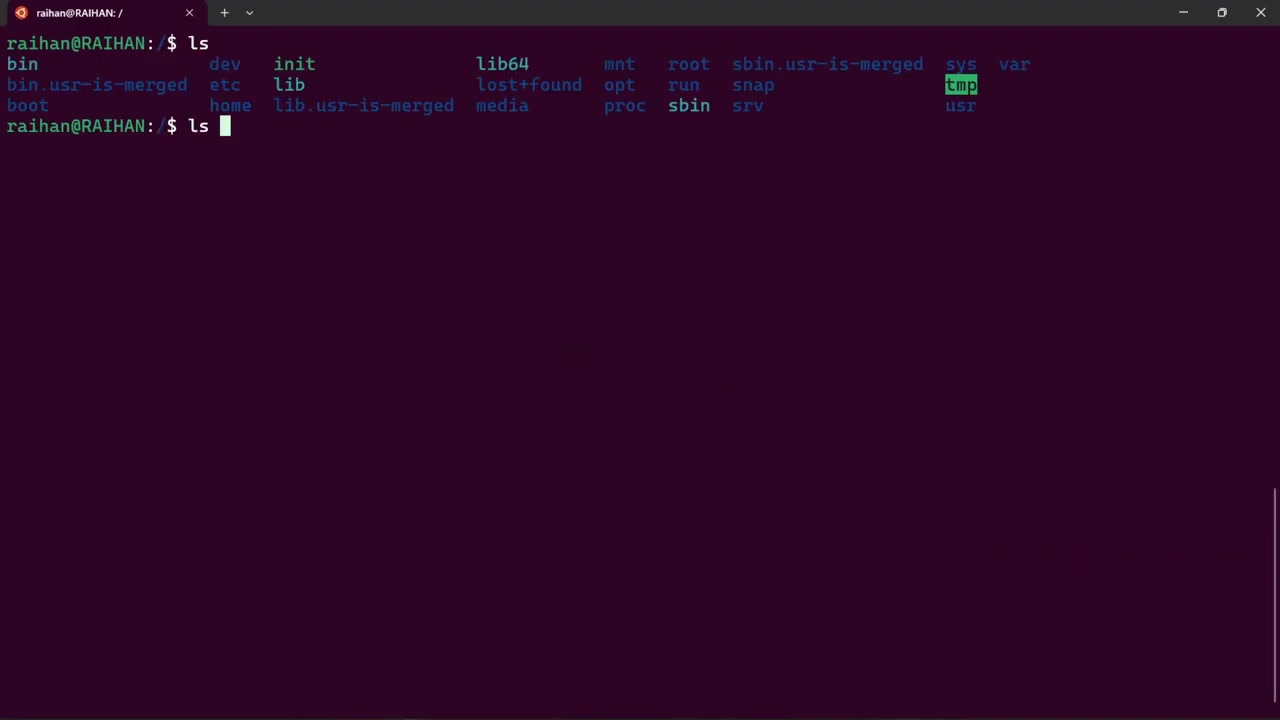
Demonstrating ls vs ls -a to reveal hidden dotfiles in the working directory.
#2
pwd
Print Working Directory: Prints the full absolute path of your current location. Essential when writing shell automation scripts.
pwd # Output: /home/ubuntu/app
#3
cd
Change Directory: Navigate directories. cd .. moves up one level; cd ~ returns home; cd - switches to the previous directory.
cd /etc/nginx/sites-available && cd -
#4
touch
Create Empty File / Update Timestamp: Instantly creates a blank file or updates modification timestamps.
touch server.js .env
#5
echo
Print Text to Terminal or File: Outputs strings. Use echo $PATH to inspect environment variables.
echo "DATABASE_URL=postgres://user:pass@localhost:5432/db" >> .env
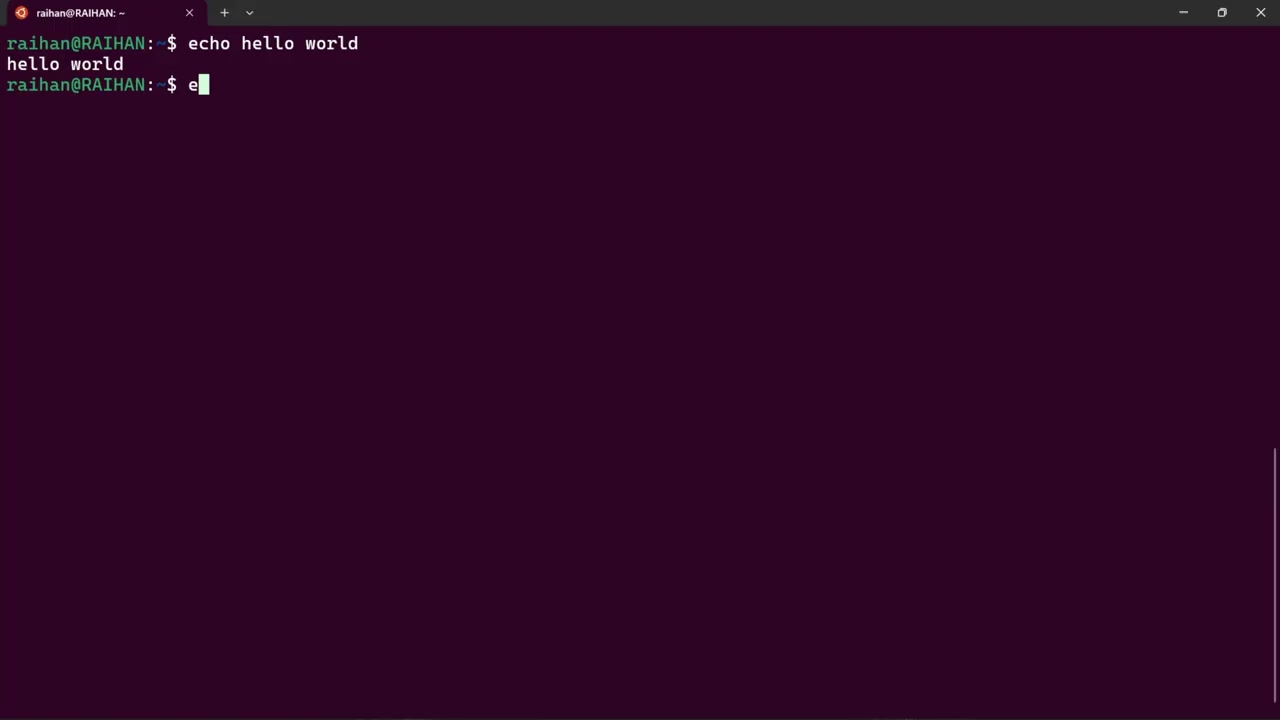
Demonstrating writing output directly into files with redirection operators.
#6
nano
Beginner Text Editor: User-friendly in-terminal text editor with keyboard shortcut hints at the bottom.
nano /etc/nginx/nginx.conf
#7
vim
Advanced Modal Text Editor: Industry standard editor available on virtually all UNIX servers. Press i to insert, Esc then :wq! to save and quit.
vim deployment.yaml
#8
cat
Concatenate & Display: Quickly outputs the entire contents of a file to stdout without opening an editor.
cat /etc/os-release
#9
shred
Secure File Destruction: Overwrites a file multiple times with random data before unlinking it, preventing recovery of API keys or certificates.
shred -u -z -n 5 private_key.pem
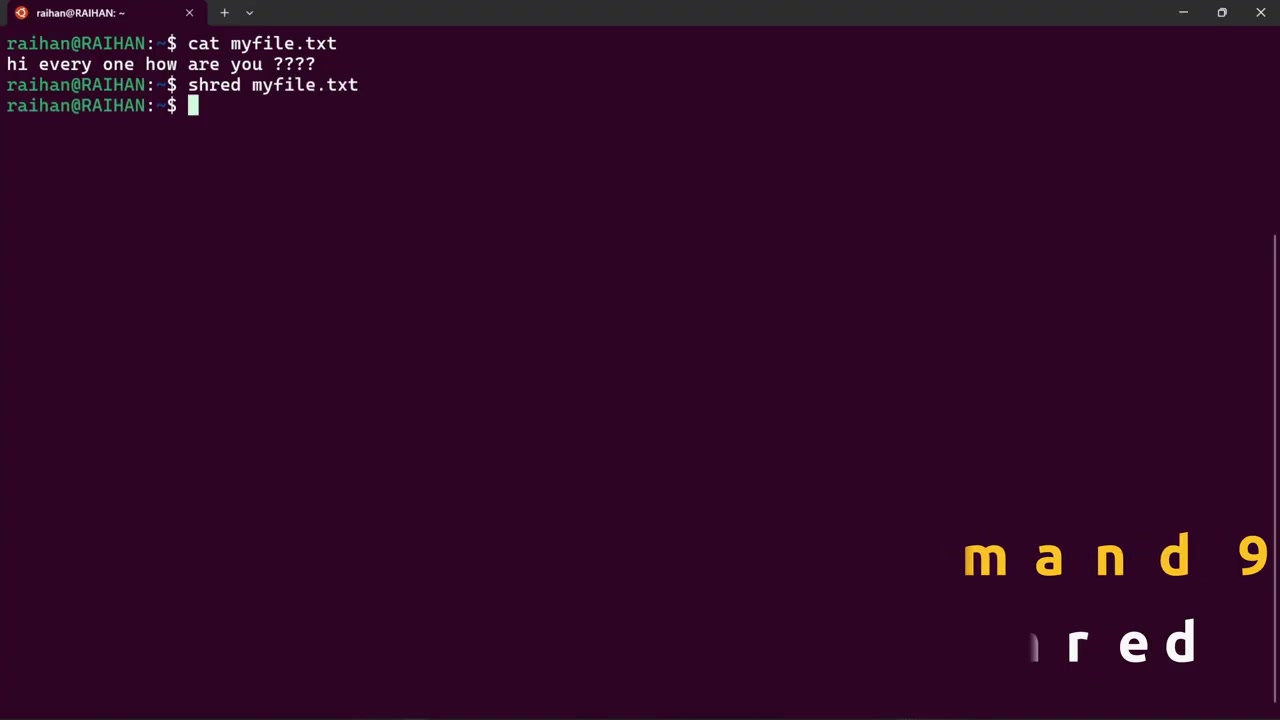
Overwriting sensitive secrets securely so they cannot be retrieved from disk.
#10
mkdir
Make Directory: Creates new folders. Use -p to create nested parent directories in a single command.
mkdir -p /opt/myapp/data/logs
#11
cp
Copy Files & Directories: Copies items. Use -r (recursive) when copying directories.
cp -r static_assets/ /var/www/html/
#12
mv
Move / Rename: Moves files between paths or renames files in place.
mv default.conf default.conf.bak
#13
rm
Remove Files: Deletes files. -r removes recursively, -f forces deletion without prompting.
rm -rf /tmp/cache_*
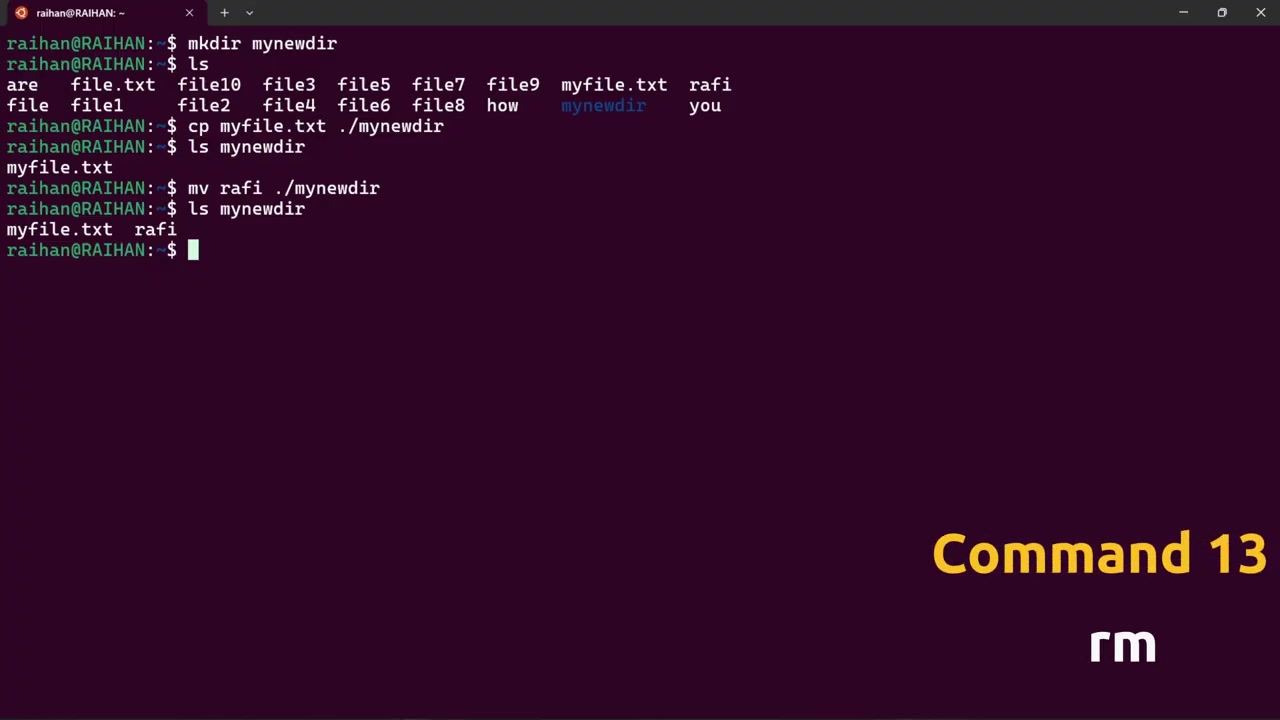
Demonstrating safe file removal and wildcard patterns in the terminal.
#14
rmdir
Remove Empty Directory: Safely removes a directory only if it is completely empty.
rmdir old_build/
#15
ln
Create Links: Creates symbolic (soft) links (ln -s) or hard links. Crucial in Nginx configuration!
ln -s /etc/nginx/sites-available/my site /etc/nginx/sites-enabled/
#16
clear
Clear Terminal: Clears terminal screen buffer. Shortcut: Ctrl + L.
clear
Category 2
Category 2: Users, Groups & Permissions (Commands 17–28, 45–46)
Linux security is grounded in Discretionary Access Control (DAC). Every file is owned by a User and a Group, with Read (r=4), Write (w=2), and Execute (x=1) permissions.
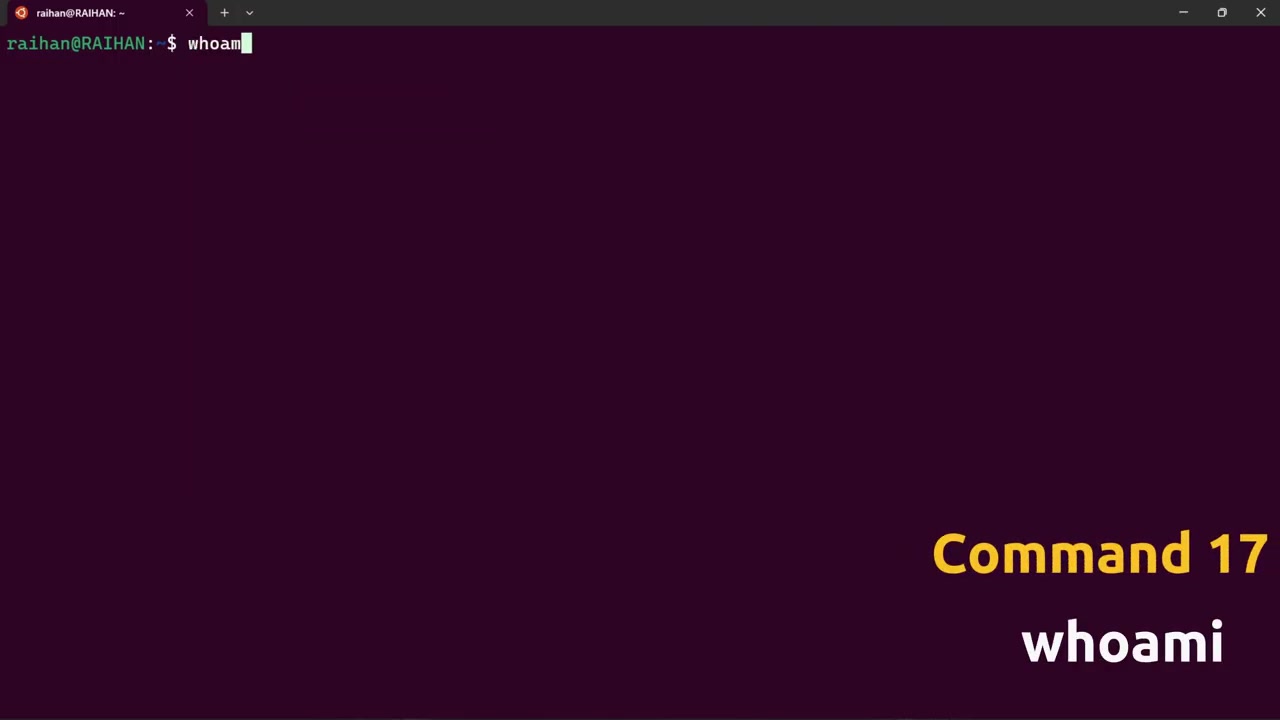
Inspecting active user context with whoami .
#17
whoami
Prints the active effective username.
whoami # Returns root, ubuntu, or ec2-user
#18
useradd
Low-level utility to register a new user in /etc/passwd.
sudo useradd -m -s /bin/bash deployer
#19
sudo
SuperUser DO: Execute commands with root elevated privileges according to /etc/sudoers.
sudo apt update
#20
adduser
High-level interactive script that creates home directories, prompts for passwords, and sets default shells.
sudo adduser devops_intern
#21
su
Switch User: Switch to another user account. su - switches to root with full environment.
su - postgres
#22
who
Shows all currently logged-in users, terminal pts, and login time.
who
#23
exit
Terminates the current shell session or SSH connection.
exit
#24
passwd
Change user password. Root can change any user's password.
sudo passwd ubuntu
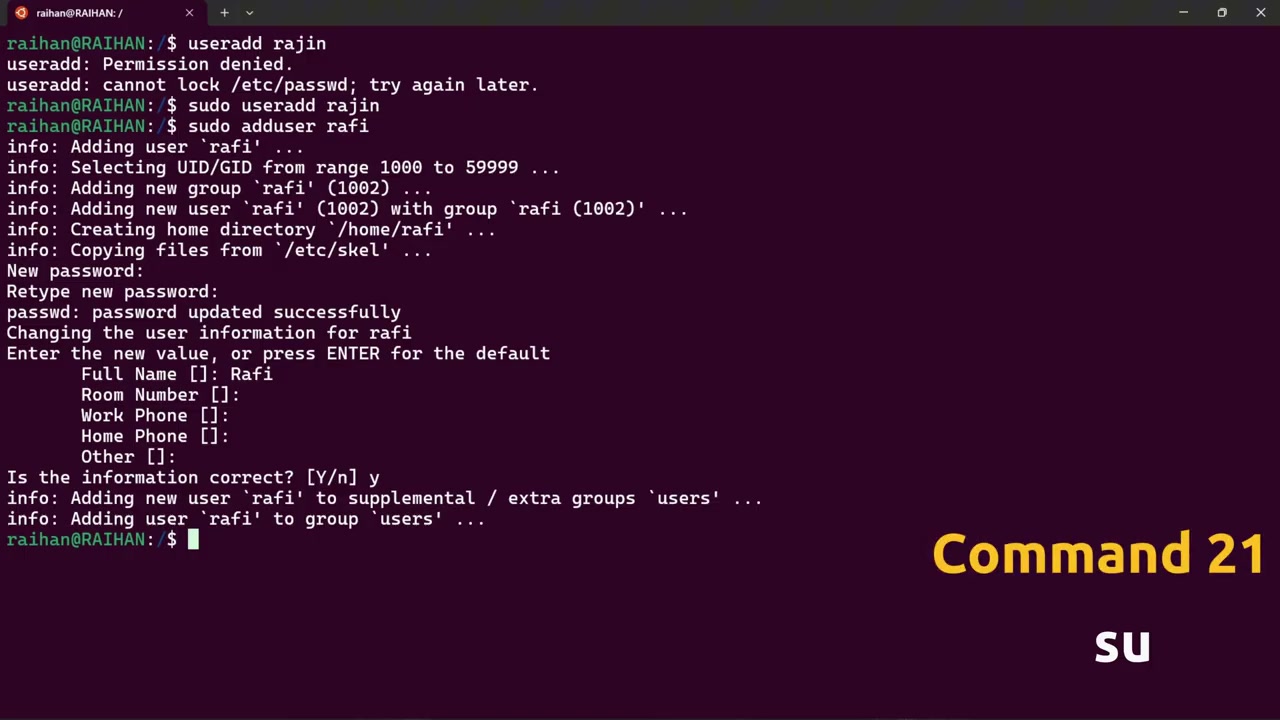
Switching user contexts cleanly in multi-tenant environments.
#25
getent passwd
Retrieves user database entries from configured sources (local files, LDAP, Active Directory).
getent passwd | grep root
#26
id
Displays numeric UID (User ID), GID (Group ID), and all secondary group memberships.
id ubuntu # uid=1000(ubuntu) gid=1000(ubuntu) groups=1000(ubuntu),27(sudo),998(docker)
#27
userdel
Delete a user. Pass -r to delete their home directory and mail spool.
sudo userdel -r old_user
#28
finger
User information lookup tool displaying login status, idle time, and real name.
finger ubuntu
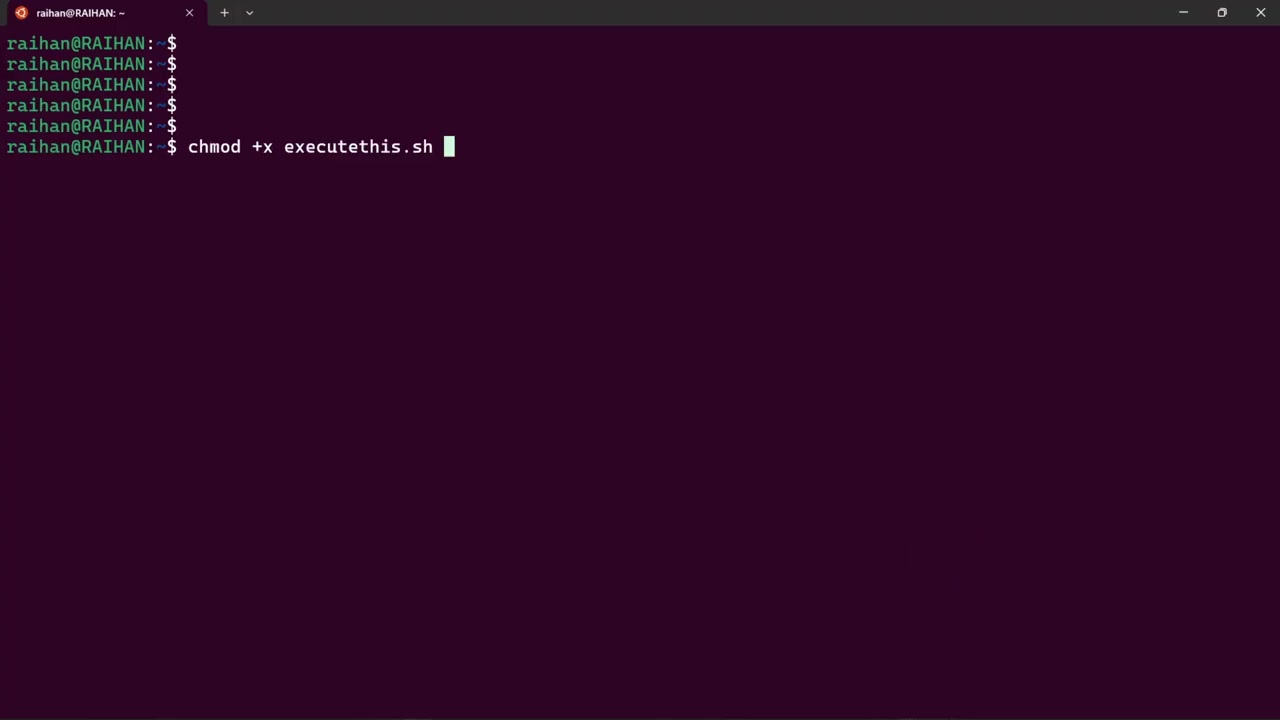
Changing file permission bits: Read (4), Write (2), Execute (1).
DevOps Permission Cheat Sheet
chmod 400 key.pem: Read-only for owner (Required by AWS EC2 for SSH private keys; SSH rejects open permissions!).chmod 755 script.sh: Owner can read/write/execute; everyone else can read and execute (ideal for binaries and shell scripts).chmod 644 config.json: Owner read/write; others read-only (standard for config and web files).chown -R www-data:www-data /var/www/html: Recursively sets web server user ownership.
Category 3
Category 3: Package Managers, Help & Command Search (Commands 29–34)
#29
apt
Debian/Ubuntu Package Manager: Modern CLI wrapper for package installation, upgrading, and dependency resolution.
sudo apt update && sudo apt install -y nginx docker.io htop
#30
man
Manual Pages: Complete offline manual for any command or system call.
man curl
#31
whatis
One-line summary description of a command extracted from its manual page.
whatis iptables # iptables (8) - administration tool for IPv4 packet filtering and NAT
#32
which
Locates which exact executable in your $PATH runs when you type a command.
which python3 # Output: /usr/bin/python3
#33
whereis
Locates the binary, source code, and manual page files for specified commands.
whereis nginx
Category 4
Category 4: Viewing, Comparing & Downloading (Commands 35–44)
#34
wget
Non-interactive network downloader supporting HTTP, HTTPS, and FTP.
wget https://dl.k8s.io/release/v1.30.0/bin/linux/amd64/kubectl
#35
curl
Transfers data using diverse protocols. Essential in DevOps for testing endpoints, health checks, and API calls.
curl -IL https://example.com
#36
zip
/
unzip
Package and compress files into portable archives; extract existing archives.
zip -r release-v1.zip ./dist && unzip release-v1.zip
#37
less
View large files page-by-page without loading the whole file into RAM. Supports forward (/) and backward (?) regex search.
less /var/log/syslog
#38
head
/
tail
Display first or last lines of a file. tail -f continuously follows new lines in real time (live log tailing!).
tail -f -n 100 /var/log/nginx/access.log
#39
cmp
/
diff
Compare files byte-by-byte (cmp) or line-by-line (diff). Great for inspecting configuration drift.
diff -u nginx.conf.prod nginx.conf.staging
#40
sort
Sort lines of text files. Combined with uniq -c to count frequencies of IP addresses in access logs.
sort -n -r metrics.txt
#41
find
Search directory tree for files matching criteria (name, size, modification date, permissions).
find /var/log -type f -name "*.log" -mtime +30 -exec gzip {} ;
Category 5
Category 5: Networking & Text Filtering (Commands 47–56)
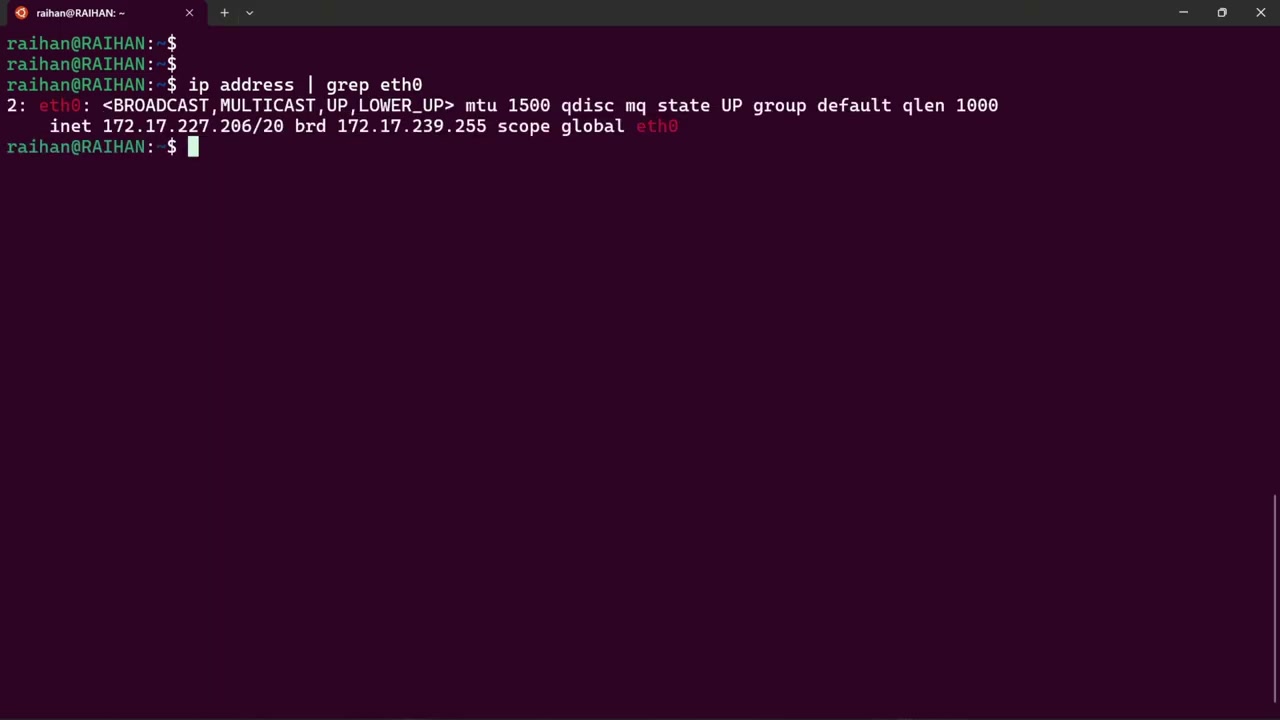
Piping terminal outputs through grep to isolate critical errors.
#42
grep
Global Regular Expression Print: Search lines matching patterns. -i ignores case, -r searches directories recursively, -v inverts match.
grep -rn "FATAL ERROR" /var/log/apps/
#43
awk
Pattern scanning and data processing language. Perfect for columnar log analysis.
awk '{print $1, $9}' /var/log/nginx/access.log | head -n 5
#44
ip address
Modern replacement for ifconfig. Inspect network interfaces, MAC addresses, and assigned IP addresses.
ip a show eth0
#45
resolvectl status
Inspect DNS server resolvers and search domains on modern systemd Linux distributions.
resolvectl status
#46
ping
Sends ICMP Echo requests to test network latency and packet loss to a host.
ping -c 4 8.8.8.8
#47
traceroute
Traces the route packets take to a network host, showing every intermediate router hop and latency.
traceroute api.github.com
#48
netstat
/
ss
Socket Statistics: Modern utility to inspect open ports, listening TCP/UDP sockets, and PID of processes bound to them.
sudo ss -tulpn
#49
ufw
Uncomplicated FireWall: Simple interface for managing iptables packet filters.
sudo ufw allow 22/tcp && sudo ufw allow 80/tcp && sudo ufw allow 443/tcp && sudo ufw enable
Category 6
Category 6: System Monitoring & Process Management (Commands 57–70)
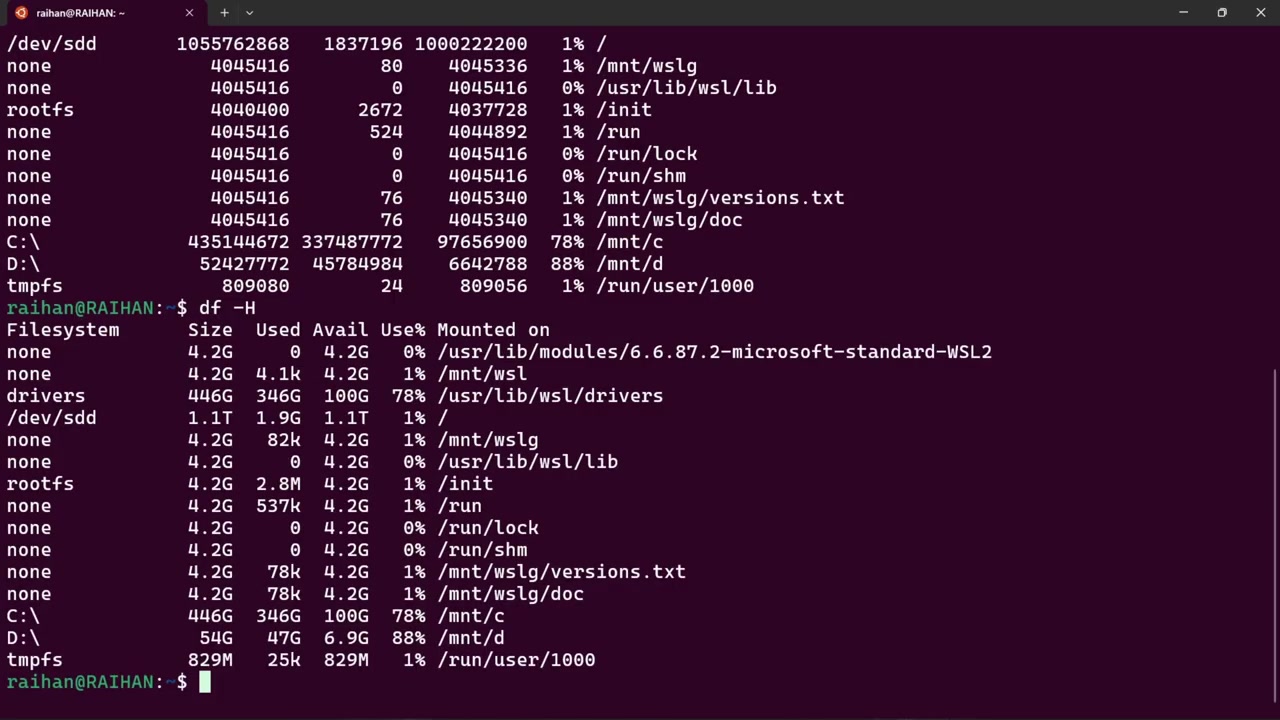
Monitoring available partition capacity with df -h .
#50
uname
Prints system information. uname -a reveals Linux kernel version, machine architecture (x86_64 or aarch64), and hostname.
uname -mrs
#51
free
Displays total, used, and free physical memory (RAM) and swap space. Always pass -h for human-readable GB/MB.
free -h
#52
df
Disk Free: Reports filesystem disk space usage. df -h displays utilization percentage per mount.
df -h /
#53
ps
Process Status: Snapshot of currently active processes. ps aux lists all processes across all users.
ps aux | grep node
#54
top
/
htop
Interactive real-time process viewer showing CPU utilization, memory consumption, load averages, and thread states.
htop
#55
kill
/
pkill
Sends signals to processes. kill -15 (SIGTERM, graceful stop); kill -9 (SIGKILL, immediate termination); pkill -f "pattern" kills by name.
pkill -f gunicorn
#56
systemctl
Control the systemd system and service manager. Used to start, stop, restart, enable on boot, and check daemon status.
sudo systemctl restart nginx && sudo systemctl status nginx
#57
history
Displays previously executed command history with line numbers. Execute a previous command with !number.
history | grep docker
#58
reboot
/
shutdown
Reboot or safely power off system instances.
sudo shutdown -h now
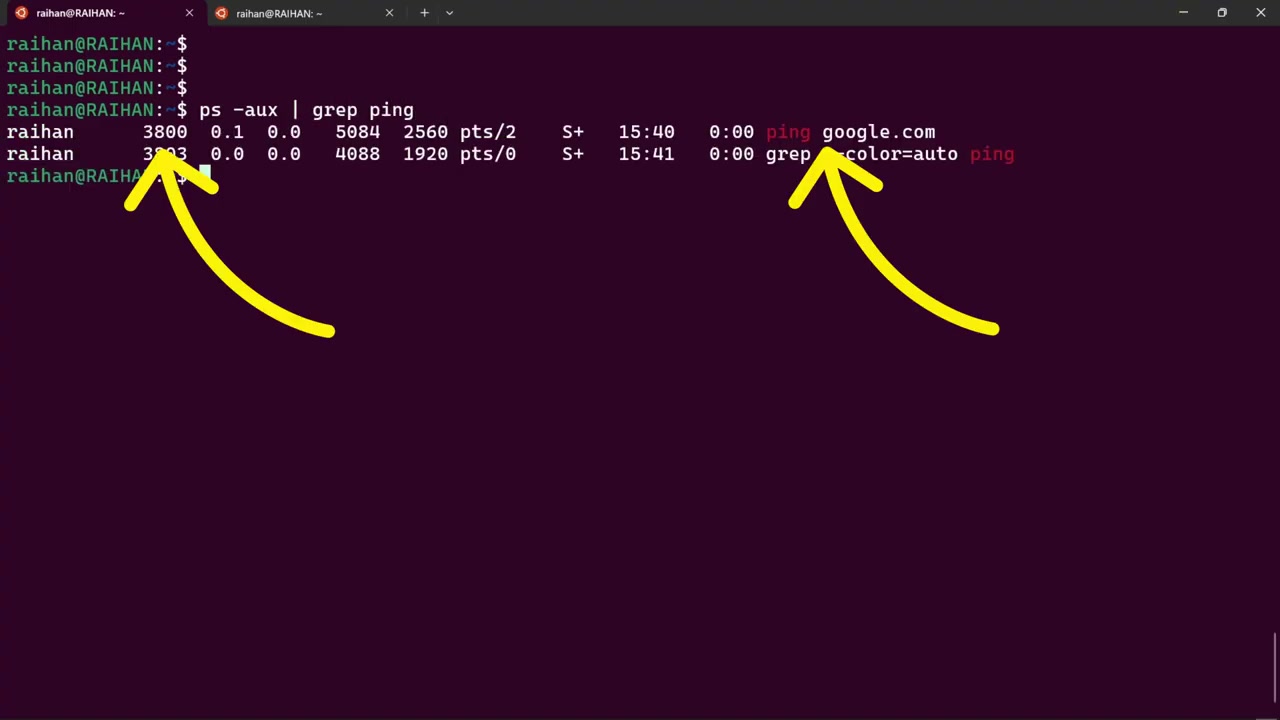
Terminating unresponsive processes using PID signals.
Quick Knowledge Check
Which command displays all open network listening ports along with their corresponding process IDs (PIDs)?
Keep going: ← Lesson 1 · Lesson 3 → · Module overview · Track it in the Self Guide
Finished this one?
Part of Self Guide · Stage 1: Linux foundations. Progress is saved in this browser.